Time & Attendance Training
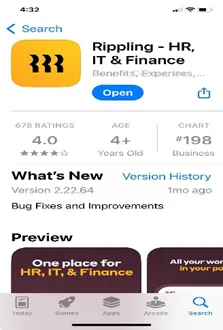
Downloading the Rippling App
Clocking in and out from the Rippling mobile app
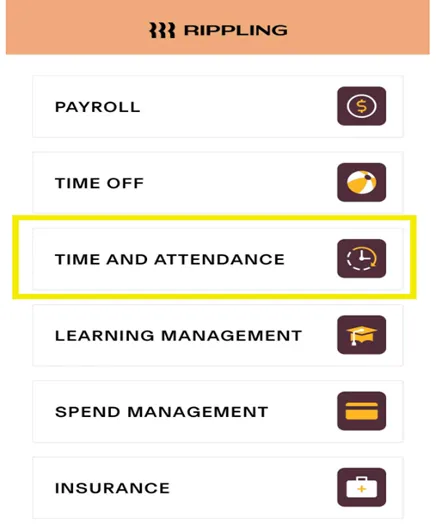
1) Once you've downloaded the Rippling app on your phone and logged in, select Apps tab on the bottom panel > Time and Attendance section. This will take you to the timeclock.
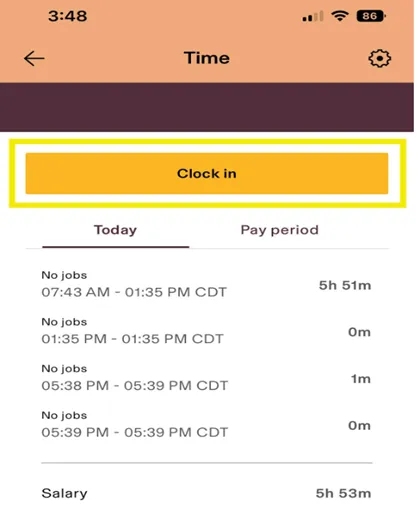
2) From here you can clock in, take breaks, and clock out. Once you've clocked in, you'll also see a detailed breakdown of time worked today.
3) At the end of the day, click Clock Out.
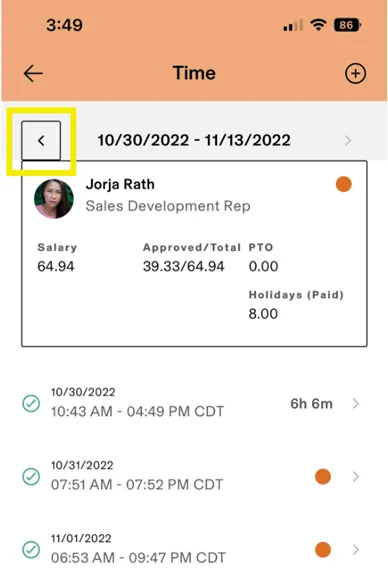
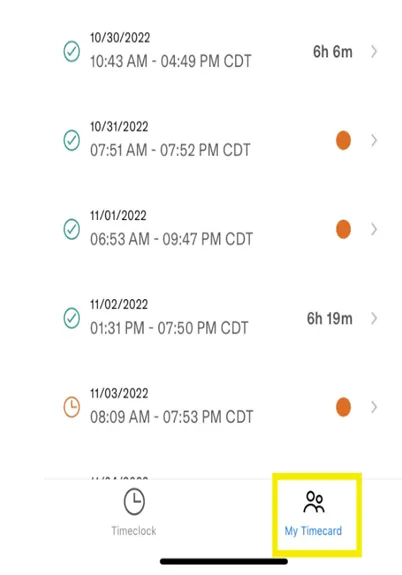
4) Once you've clocked out, today's shift will show up on the My time card tab at the bottom. In this section, you'll also see all past shifts logged for the current pay period, and can scroll through past pay periods to see previous shifts.
Request a change to your timecard
You can only request changes for shifts that have not yet been paid out. If you notice an incorrect time punch that has already been paid out, contact your manager.
You also won’t be able to edit shifts that don’t have a clock out time–you must wait until you clock out to request any changes. When you clock out, you’ll be given the option to request an edit.
These steps can be taken either on a web browser (i.e. Google Chrome, Firefox) or within the Rippling mobile app.
- Open your Time & Attendance app > My Time.
- In the shift you want to edit, click the arrow to open the shift detail panel > toggle to Request changeat the top. Not seeing the Request change tab? Make sure you’re clocked out of your shift, first!
- Describe the change you’re making, for example “Forgot to clock out for break”
- From here, make the edits as needed:
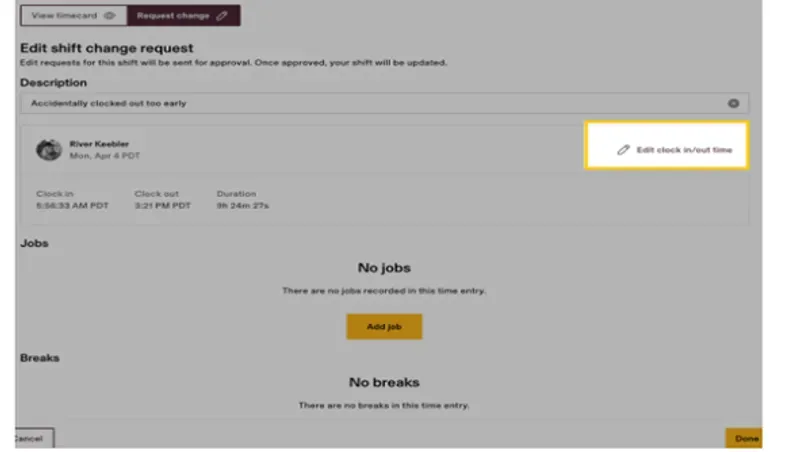
- To change clock in/clock out time, select the the Edit clock in/out times button > Save
- To change a job code or break, click into the dropdown and select the correct job code or break.
- To change the times associated with a job code or break, click the time to open a window where you can edit the time input > Save.
5. When you’re finished making corrections, click Update change request.
Your pending request will show in the Change requests tab beneath your hours summary. When your time approver reviews the request, you’ll be notified of its approval or rejection.
Resources on Rippling Help Center
- Other Time & Attendance Guides: https://help.rippling.com/s/topic/0TO4o000000HtdfGAC/time-attendance-for-employees