Rippling - General information
Why we use Rippling?
Rippling offers an enhanced user experience and robust features that will support Riparian's continued growth and streamline our payroll processes. This change will bring several benefits, including improved efficiency, better integration with our existing systems, and a more user-friendly interface.
- Easy onboarding process
- Requesting Time Off
- Payroll
- Insurance and Benefits
- Time and PTO tracking
- Learning Management System
- Using the Rippling Mobile
Invitation from Rippling will come to your personal e-mail. The onboarding process only takes about 10 minutes, and is important to complete as soon as possible so your employer has accurate records and, if relevant, can ensure you get paid on time.
Collect the following information, which you'll need to complete your onboarding:
- Social Security Number
- Emergency contact name and phone number
- Direct deposit bank routing number, account number, and account type
- Photo or uploadable image of your US passport; or two other identity verification documents such as a driver's license or other government or school-issued ID, birth certificate, or Social Security number card
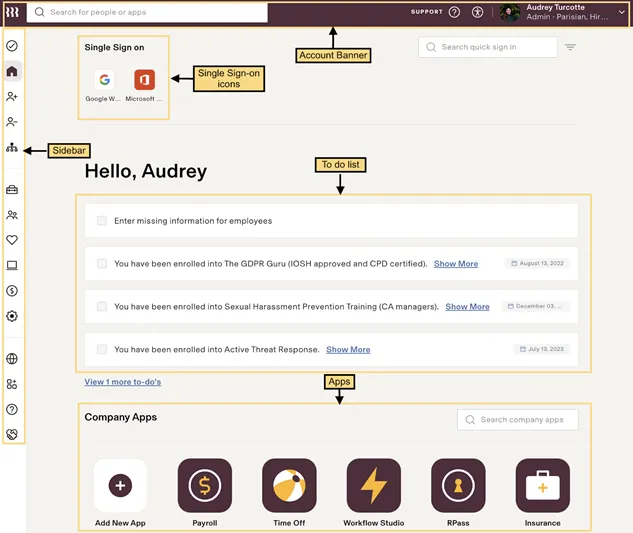
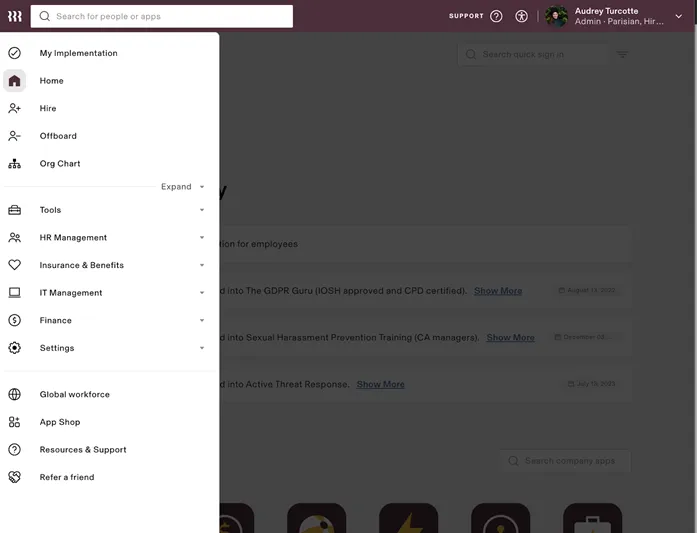
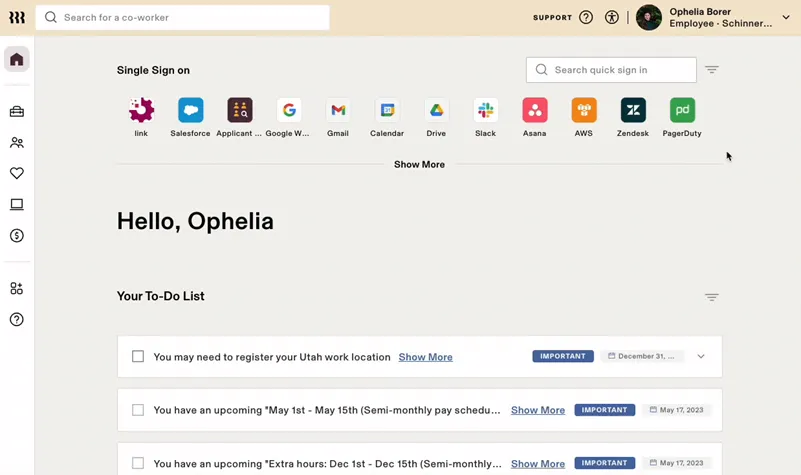
Meet the Rippling dashboard
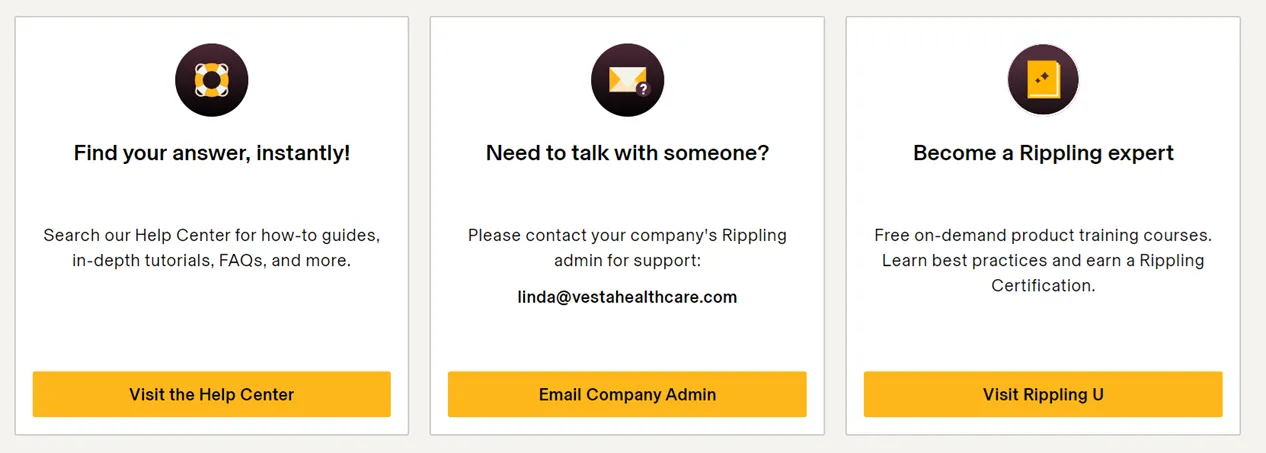
Resources - Help Center
If you’re having trouble navigating Rippling, the Help Center is a great place to start. It provides step-by-step instructions and screenshots of the most frequently asked questions about Rippling. Please review these resources for common questions.
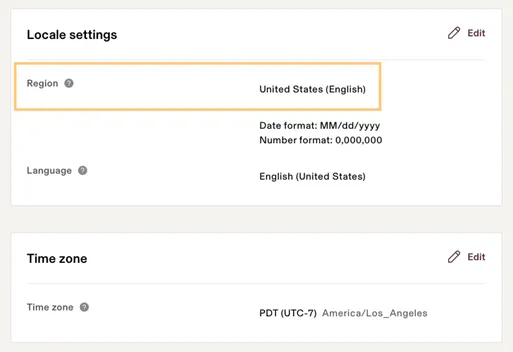
Updating Your Locale, Region, Language
To set your locale
- Click on your account icon in the top right corner
- Select Account settings > Select the Locale tab > Update Region, Language, Time Zone
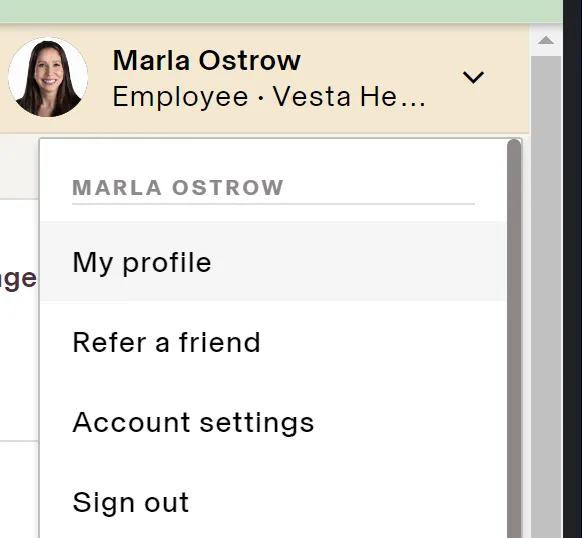
Your Employee Profile
To see your personal information, navigate to your employee profile by clicking on your picture on the right corner. Then, click on “My Profile”

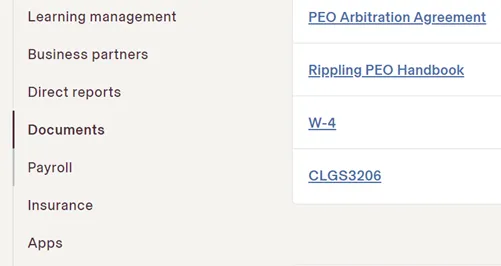
To see employee documents (e.g., paperwork you have signed), go to Documents in the left menu
Updating Personal Information
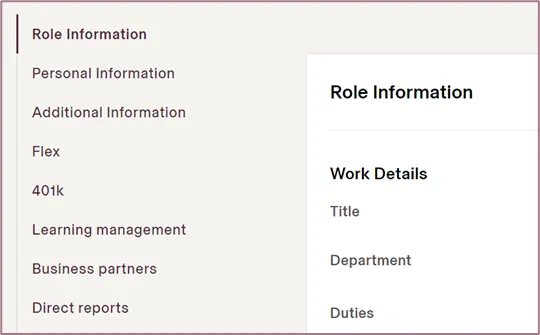
To view or update information about yourself (e.g., address, your emergency contact, personal email address, etc.), navigate to Personal Information on the left menu. You can edit any details from that page.
- Click My Profile > Personal Information
- Click Edit on the top right, make the changes you need to make, and click Save Changes.

Requesting Time Off
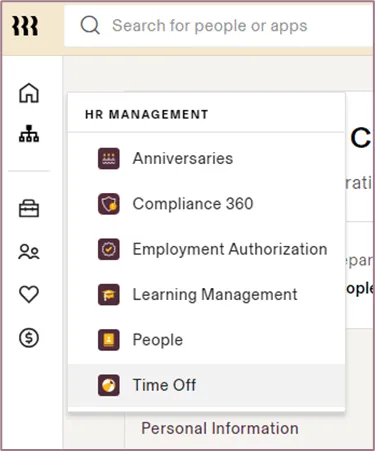
To request your time off (e.g., vacation, sick, etc.), navigate to: HR Management (icon on left-side menu) → Time Off
You have the ability to do things like:
- Request time off
- Check your available time off balance
- View Company holidays (under Overview)
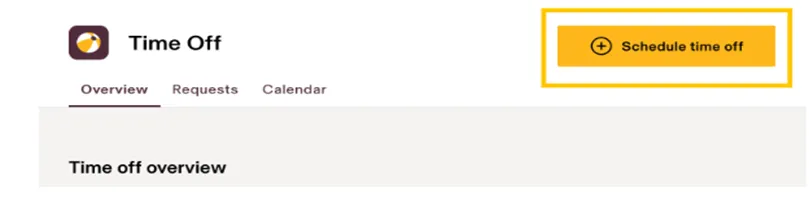
- On the top right, click + Schedule time off
2. Leave type. From the Leave type dropdown, select the type of leave you are requesting.
3. Start and end dates. Enter the start and end dates of your leave, if required. If you are requesting custom hours (e.g., 4 hours instead of a full 8 hours), you must first select the start and end dates of the leave before checking the Custom Hours option. Then, you can enter the number of custom hours you want to request off and the time when the leave starts.
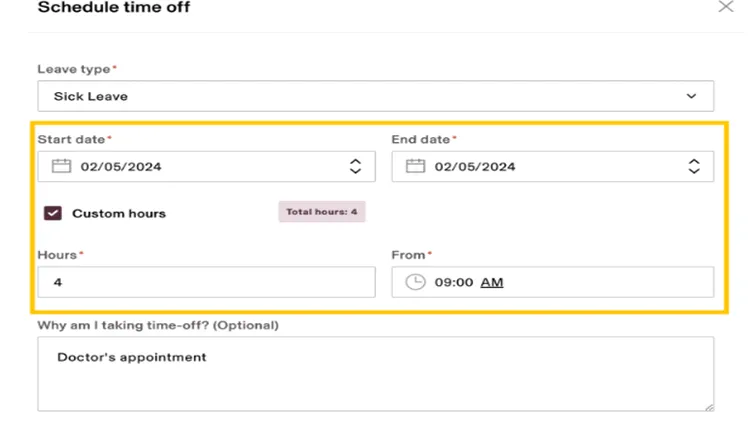
4. Time off reason. Optionally, provide a reason for your time off.
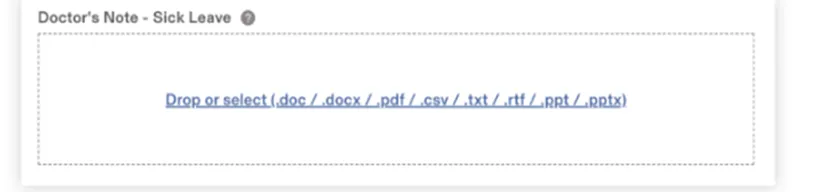
5. Proof of leave document
You may be prompted to upload documentation verifying your leave request. If your Rippling administrator has indicated the documentation is required, you will not be able to save your request until you have uploaded a file. Drag and drop it into the provided field or select a file from your computer.
6. Click Save.
Your manager will be required to approve your request. You'll receive an email informing you once your request has been approved/denied.
Request time off via the Rippling mobile app
- To request time off via the mobile app:
- Open the Rippling app on your mobile device
- Tap theTime off section > click the plus (+) icon on the top rirght
- Fill in the details of the request > click Save.
- If you are requesting custom hours, you must first select the start and end dates of the leave before moving the Custom Hours slider
- Input the number of custom hours you wish to request off, and the time when the leave starts
Resources on Rippling Help Center
Payroll
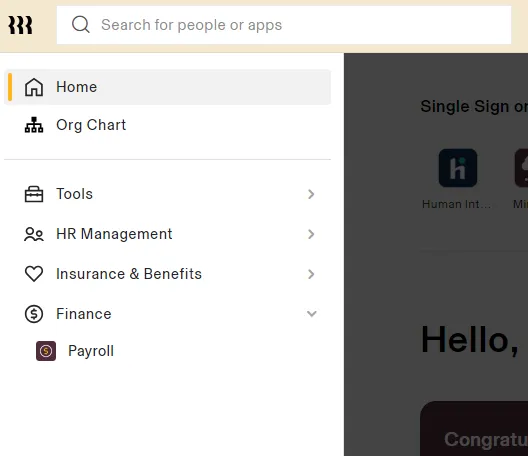
To view all things related to your pay, navigate to Finance ($ icon on left-side menu) → Payroll.
You have the ability to: - View your Paystub - Change or view your tax withholding - View your W2 (Available in 2025) - Change your Direct Deposit Information (Under Payment Information) - More
Rippling Payroll Guides
- Enrolling in Insurance and Flex Benefits Guide (New Employee): https://help.rippling.com/s/article/1500010837582
Insurance and Benefits
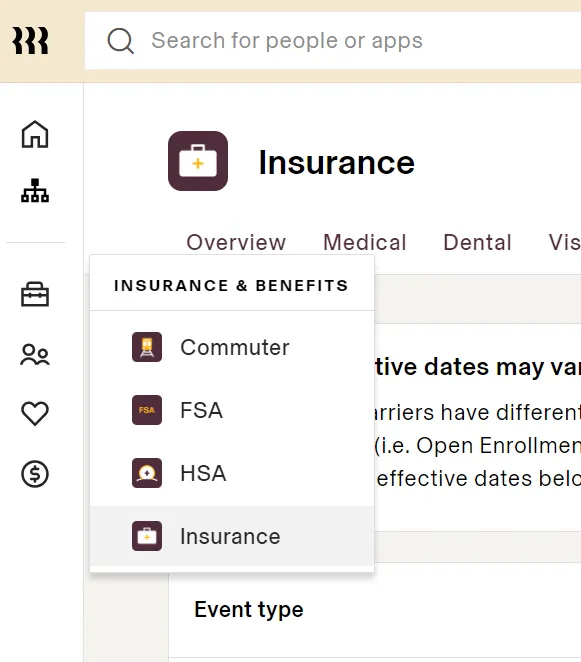
To view all things related to your Insurance, navigate to → Insurance and Benefits (♡ icon, left-side menu).
You have the ability to check information on a variety of benefits that you may be eligible for and/or enrolled in:
- Insurance (Medical, Dental, Vision)
- HSA
Resources on Rippling Help Center:
- Enrolling in Insurance and Flex Benefits Guide (New Employee): https://help.rippling.com/s/article/1500010837582
- All Insurance & Benefits Guides: https://help.rippling.com/s/topic/0TO4o000000Hsq8GAC/insurance-benefits-for-employees
Using the Rippling Mobile
To download the Rippling App:
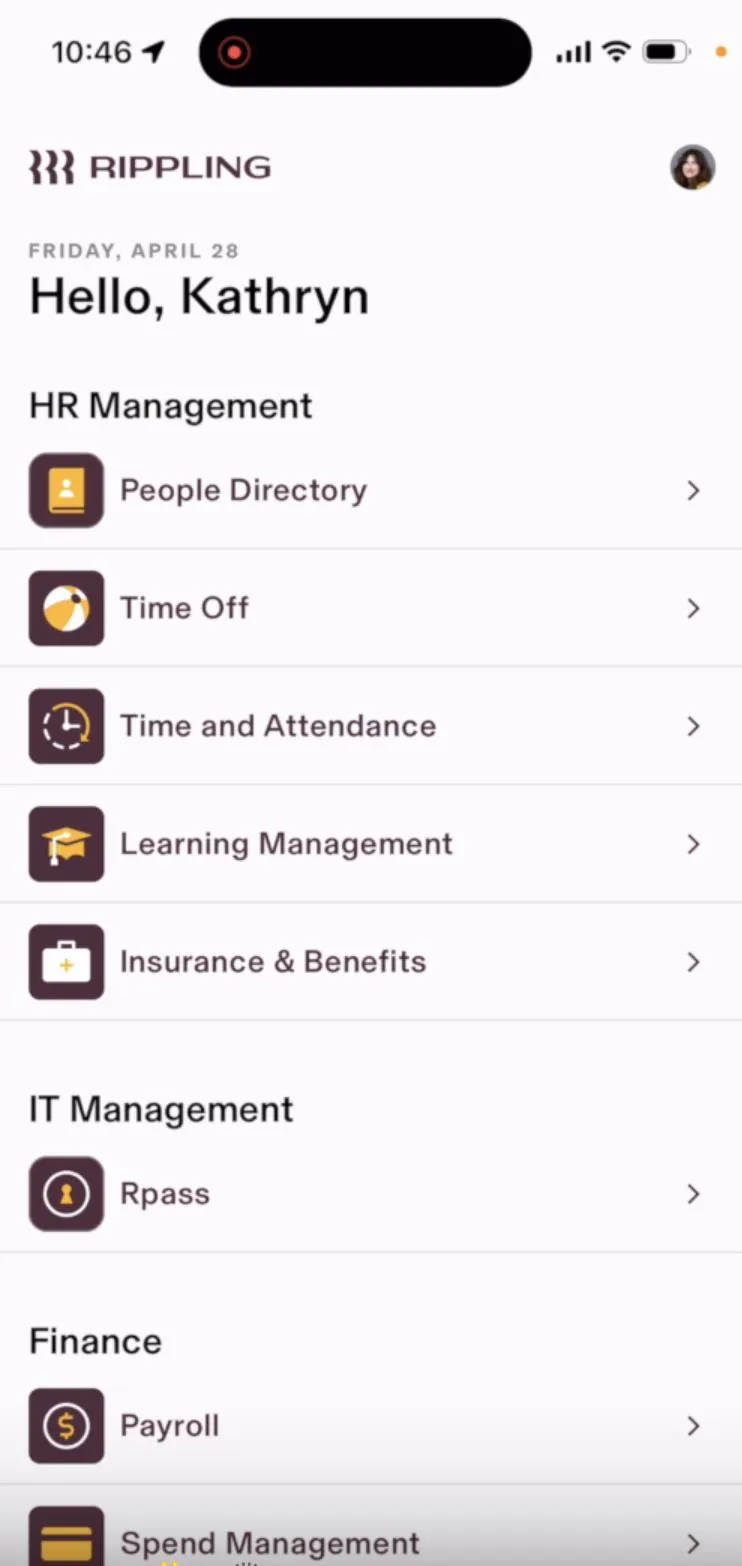
Homescreen
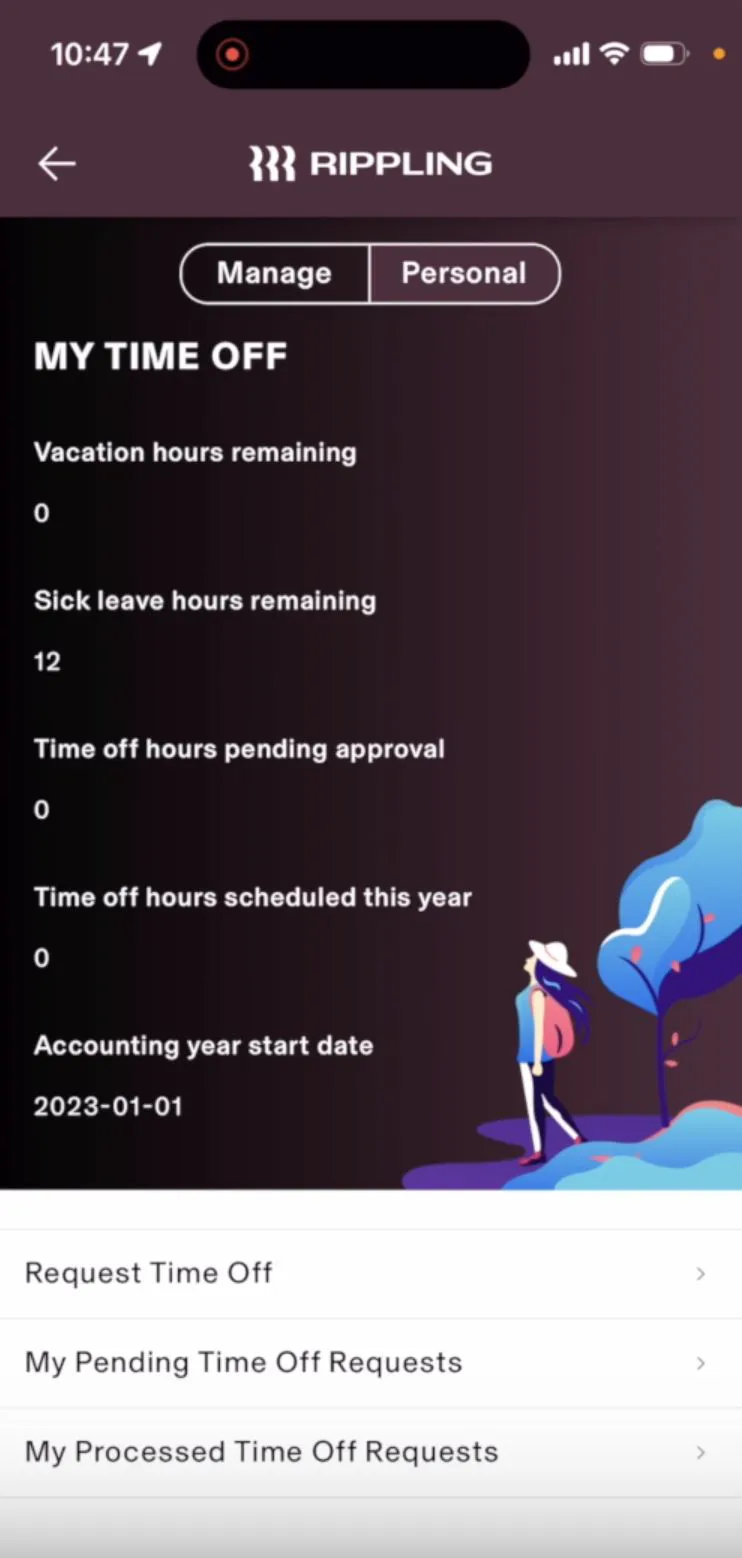
PTO
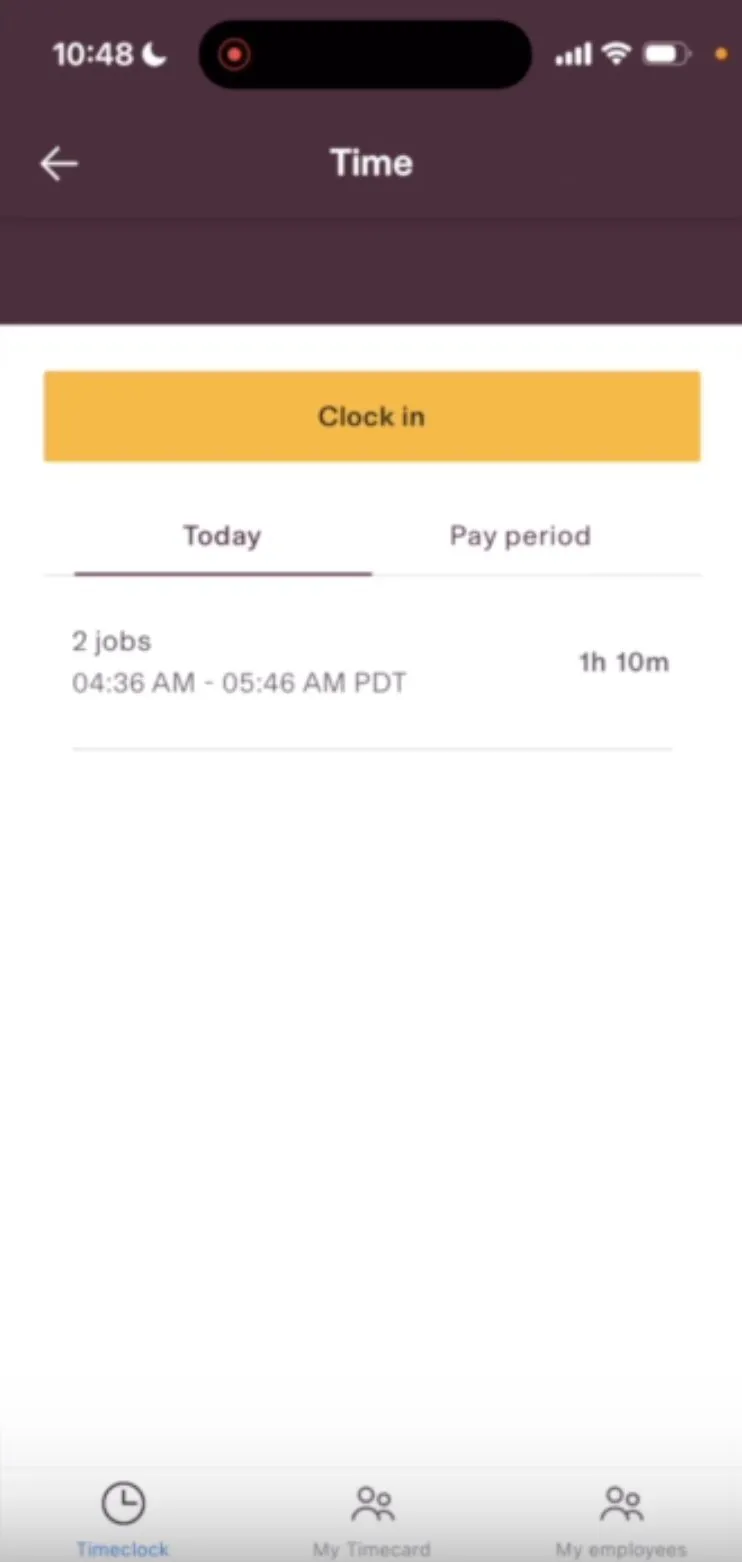
Clock-In (Hourly Employees)