Approval workflow
Approve and manage time off requests
When an employee submits a time off request, it requires approval.
Approvers will receive an email notification with details about the request and a link to approve or decline it. Even if the approver is out of the office, the email will still be sent to the approver. See an end-to-end example of how the approval process works.
To review and approve a request:
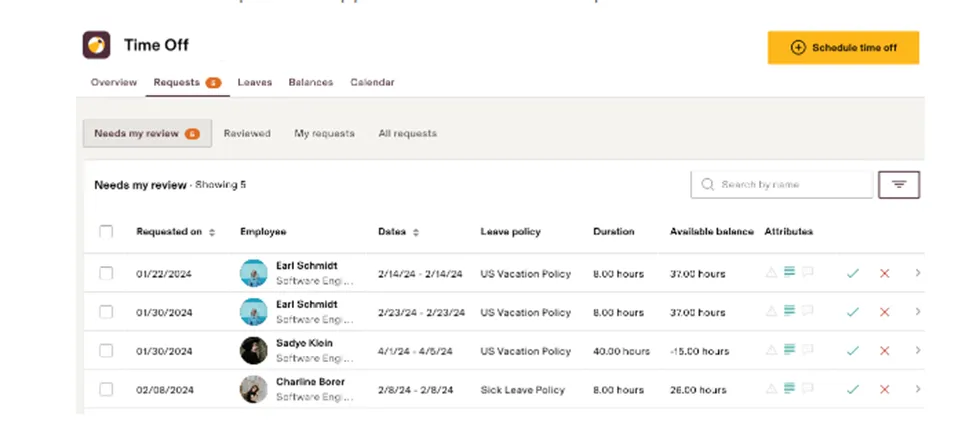
- Open the Time Off app > Requests tab > Needs my review sub-tab. Pending requests will appear here.
- You will see options to approve or decline each request.
Edit or cancel a processed time off request
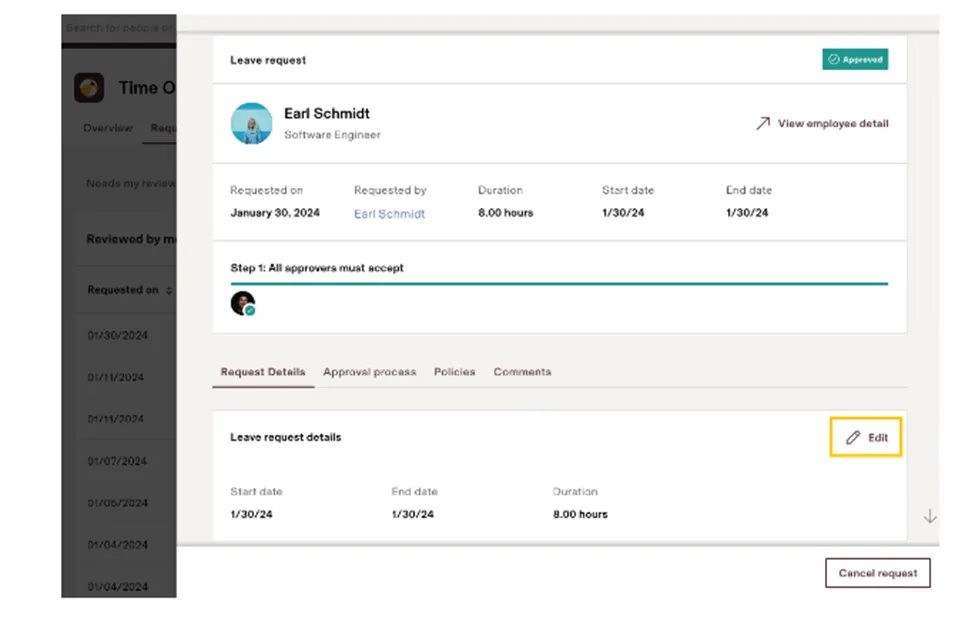
- Open the the Time Off app > Requests tab > Reviewed sub-tab.
- Find the request you want to edit and click on it to open its details.
- Under Request Details, click Edit.
Can I edit a pending request?
Pending requests can only be changed by the requester. If you want to edit a pending request submitted by an employee, we recommend that you decline it and have the employee resubmit it.
How to approve hours in the Time & Attendance app
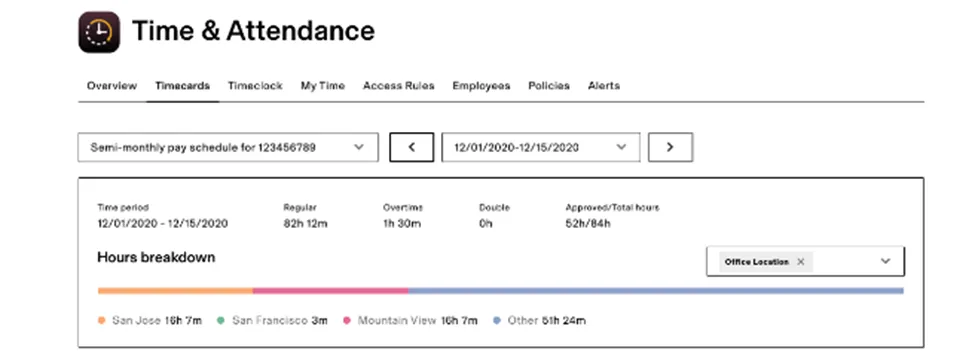
- At the top, you can filter timecards by pay
View detailed hours for all employees
- Once you've selected the correct filters, you'll see timecards for employees that have clocked hours within that pay period and are paid on the selected pay schedule.
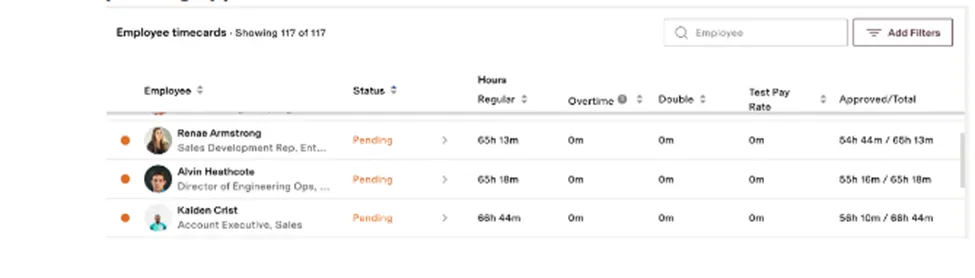
- In this view, you get a detailed breakdown of hours across regular, overtime, double, and total hours. You can also quickly see whether an employee's hours have been approved or are pending approval.
Approve an employee's hours
- Open an employee's timecard by selecting the > next to their name.
- The app defaults to a Timecards view, which shows logged hours by day and time.
- You can see a table version of hours logged by day by selecting Timeline.
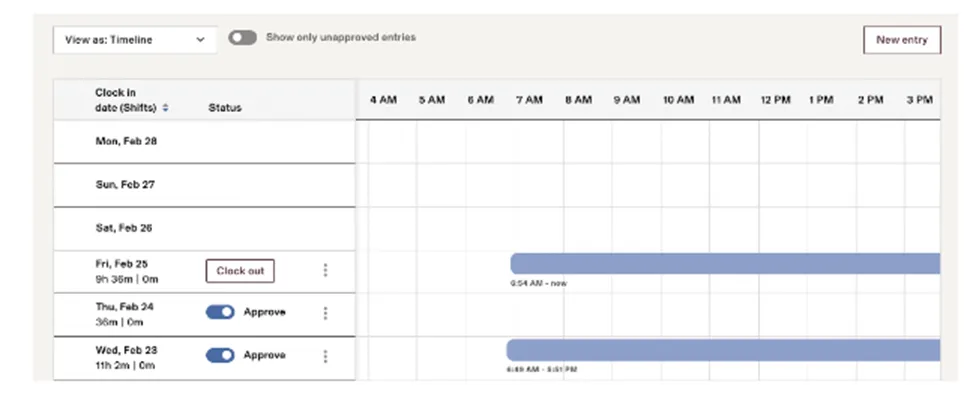
- To approve: Whether in Timecard or Timeline view, you can approve hours directly from here by toggling the Approve tab next to each shift. You can also select Approve all to approve all clocked hours across all days, for this specific employee.
Change an employee's hours before approving
Adjust hours logged. Select the three-dot menu next to the date you want to adjust > View time entry
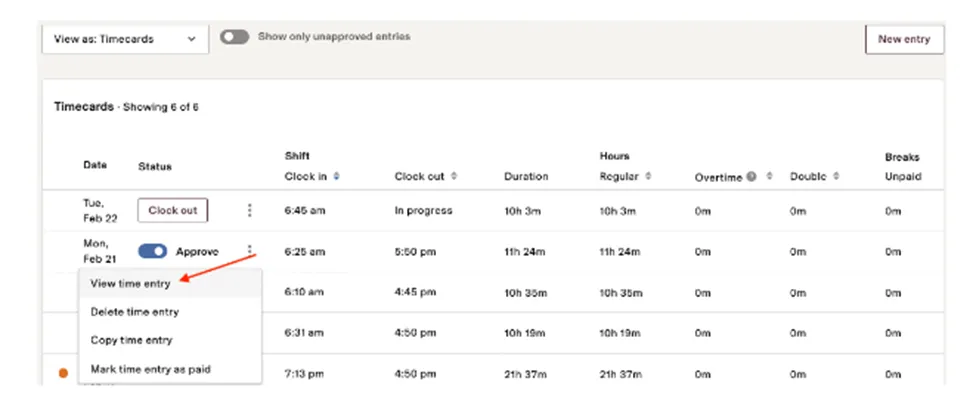
From this detailed view, you have full flexibility to adjust all hours, including breaks and jobs settings. Once you're done making changes, Save changes > Approve, following the guidance above.
Add missing hours
At the top of the employee's timecard summary, select New entry.
Just an employee logging their own hours, select the date, hours, jobs (if applicable), and breaks > Save changes.
Review & approve your remaining employees
To review and approve the next employee's hours, select the ">" on the top right corner. To return to the summary view with all employees, select Time approval from the top left corner.

Tips for approving hours in T&A
Show only unapproved entries: From the employee timecard view, you can toggle the Show only unapproved entries tab. This way, you're only reviewing (and approving) hours entries that are still pending.
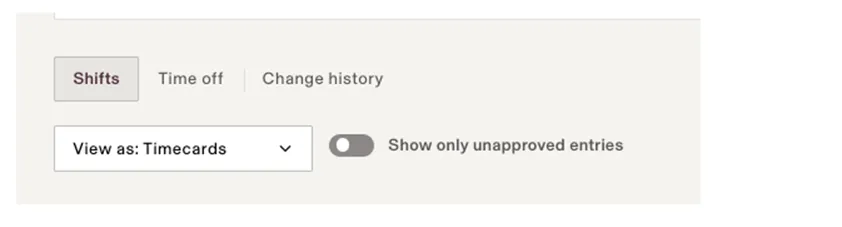
Approve all: From the employee timecard view, you can approve hours by shift, or speed up the approval process by selecting Approve all.
What happens if hours are not approved in time for payroll?
Employees are not paid for unapproved hours. For this reason, it's essential the employee’s manager approve hours before due time.